Geniva for Android is downloaded straight from this website rather than from Google Play. It's the same app as on iPhone, with the same account, societies, events and chats.
Loading version details…
Needs Android 7.0 or newer. Notifications need Google Play services, which almost every Android phone has (some recent Huawei phones don't).
01How to install
Android asks you to confirm a few times because the app isn't coming from Google Play. That's normal. Here's exactly what you'll see.
-
Download the app
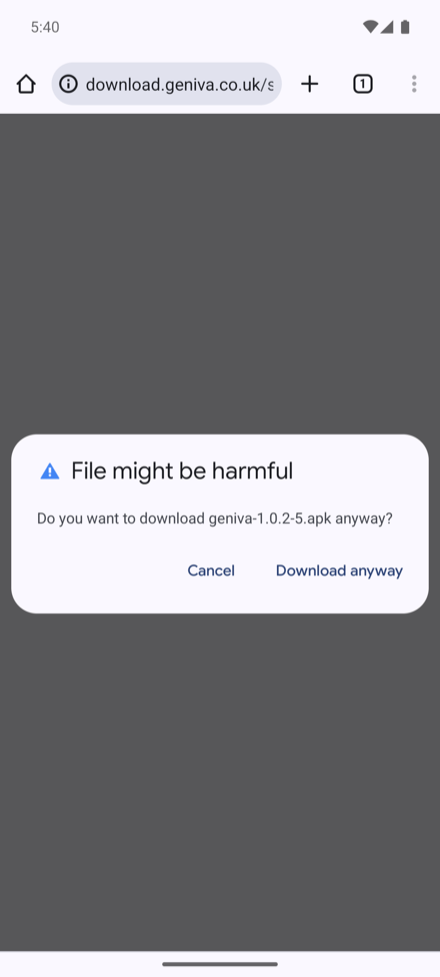
Tap Download for Android above. If Chrome asks whether to keep the file, tap Download anyway.
-
Open the file
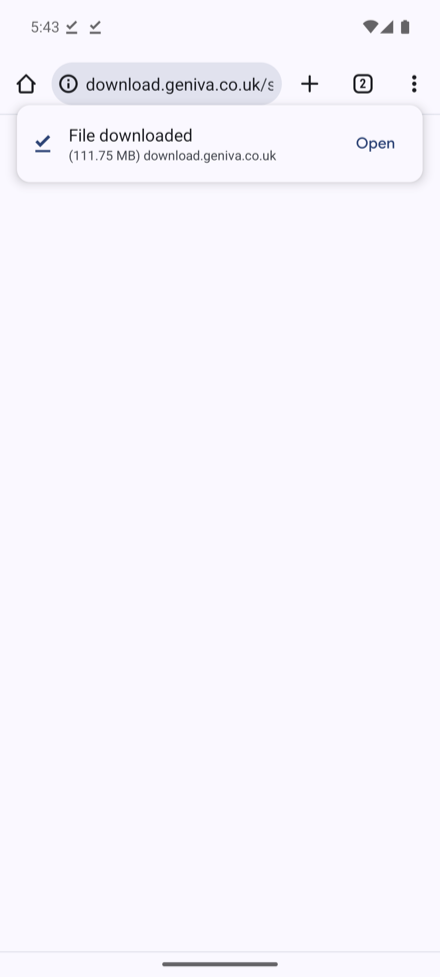
Tap Open when the download finishes. You can also find geniva-….apk in the Files app under Downloads.
-
Allow installs from your browser
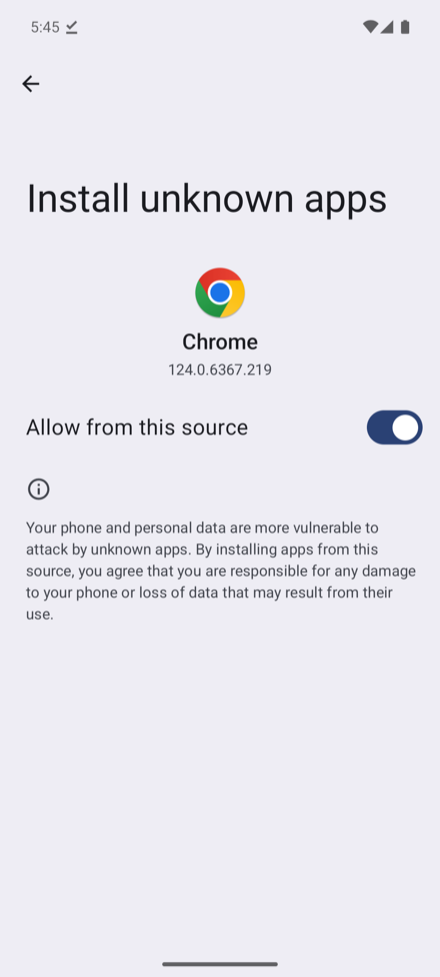
The first time, Android says it isn't allowed to install unknown apps from this source. Tap Settings and switch on Allow from this source. The install prompt appears straight away. If it doesn't, go back and tap the file again.
-
Tap Install
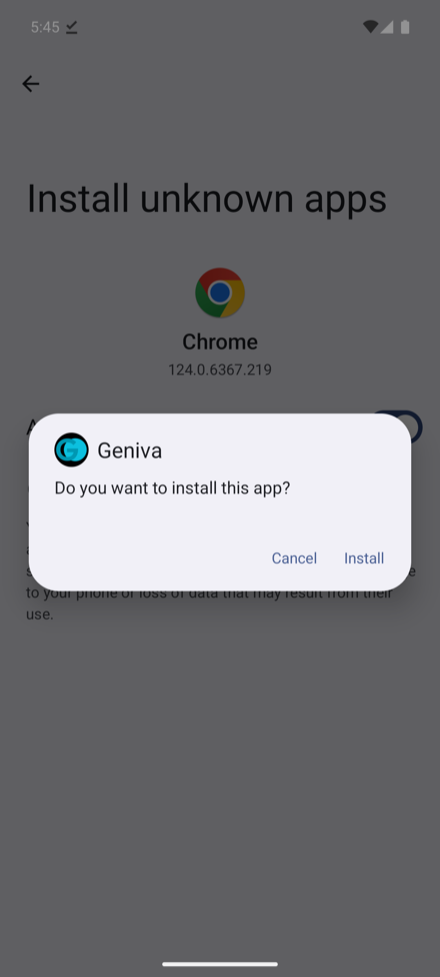
Android asks "Do you want to install this app?". Tap Install.
-
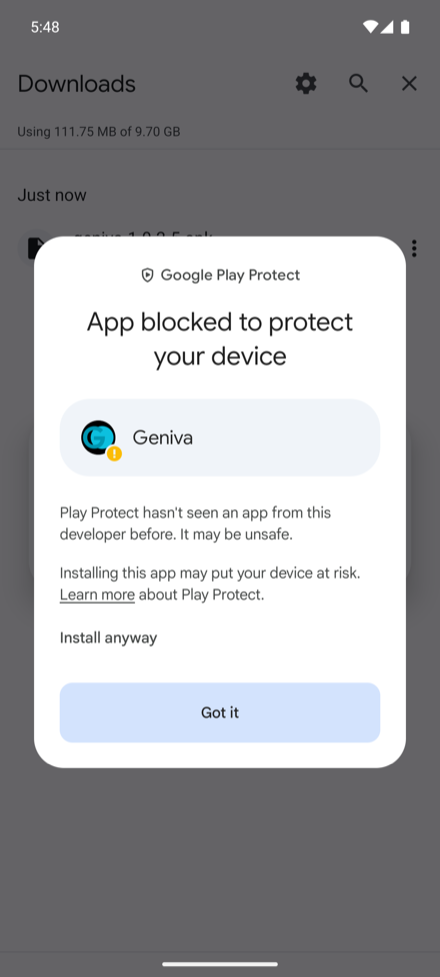
If Play Protect blocks it
Google Play Protect may say "App blocked to protect your device", because it hasn't seen an app from us before. Don't tap Got it (that cancels the install). Tap More details, then Install anyway. If it offers to scan the app, you can let it. That's fine too.
-
Open Geniva
Tap Open, then log in or sign up with your university email. Geniva is also on your home screen and in your app list.
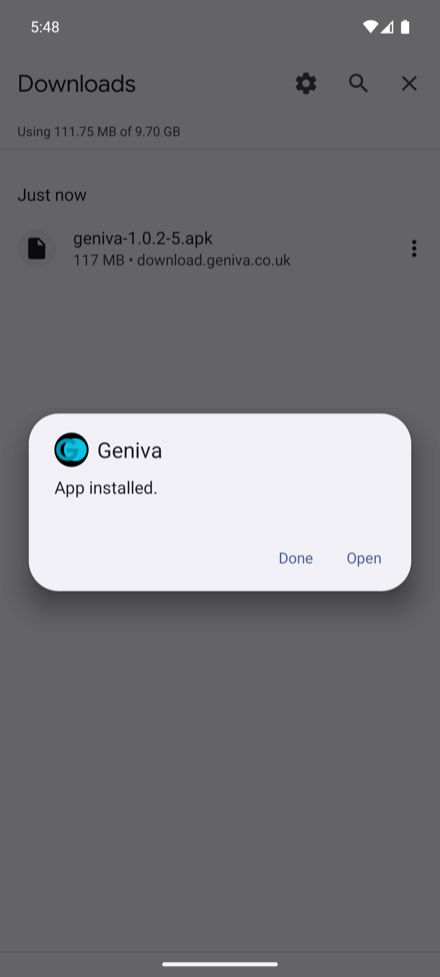
Once Geniva is installed, you can switch Allow from this source back off. You'll only need it again for big updates.
02Is this safe?
Yes. Android shows these warnings for every app that doesn't come from Google Play, not just Geniva. Here's why you can trust this one:
- It comes from us. Only download Geniva from geniva.co.uk/android. Never install a Geniva file someone sends you in a chat.
- It's signed by Geniva. Every version is signed with the same Geniva key. Android refuses to install an update signed by anyone else over your copy.
- You can check the file. The SHA-256 checksum above is the file's fingerprint. If you know how, compare it with the file you downloaded. They should match exactly.
- It asks for very little. Notifications (only if you turn them on), your camera (only when you take a society picture), and the internet. It only sees photos you choose to upload, and it can't read your files, contacts or location.
- We never ask for your password outside the Geniva app. See our Privacy Policy.
03Updating
- Small fixes install themselves. Geniva downloads them in the background and uses them the next time you open the app.
- Bigger updates: Geniva shows an Update available banner. Tap Update, download the new version from this page and tap Install. It replaces the old version and you stay logged in.
- Don't uninstall first. Installing over the top keeps everything as it was.
04Problems installing?
- "App not installed" usually means low storage, or an old test copy of Geniva signed differently. Free some space, or uninstall the old copy, then try again.
- Nothing happens when you tap the file: check Settings → Apps → Special app access → Install unknown apps and allow the browser or Files app you're using.
- No notifications: turn them on in Profile → Push notifications, and check Geniva is allowed in your phone's notification settings.
Still stuck? Email [email protected] with your phone model and a screenshot.